
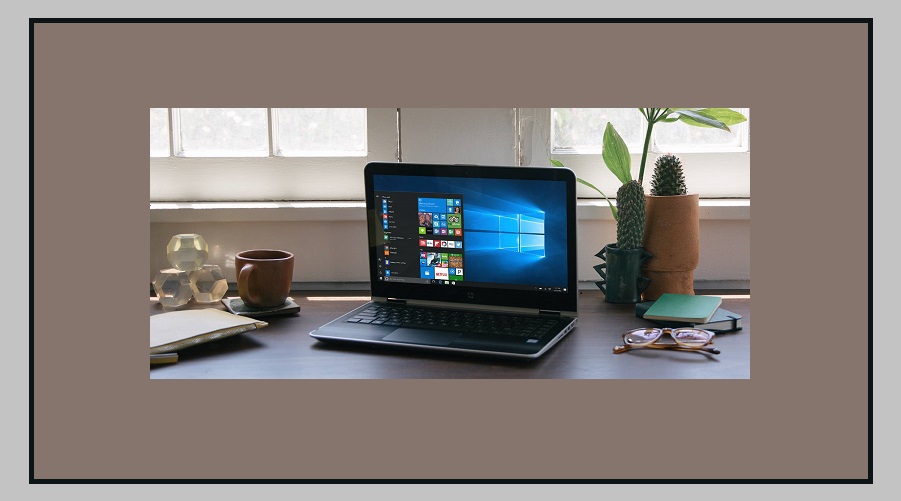
Over time, many Windows computers start running slower.
Apps take longer to open, the system may hang, and everyday tasks become frustrating.
There can be several reasons for this problem.
Too many apps running in the background, full storage, or outdated system software can all slow down your computer.
According to Microsoft, there are a few simple steps you can follow to improve your PC’s performance.
These methods can help make your computer faster and smoother to use.
Keep Windows and Drivers Updated
One of the easiest ways to improve your computer’s speed is to keep Microsoft Windows updated.
New updates usually include security patches, bug fixes, and driver improvements that help the system run better.
If your PC hasn’t been updated for a long time, installing the latest update may solve many performance issues automatically.
Regular updates also make your system more secure and stable.
Scan Your PC for Malware
Sometimes a slow computer is caused by viruses or malware.
These harmful programs run in the background and consume system resources, which reduces performance.
You can use built-in security tools like Microsoft Defender to scan your computer for threats.
Running a malware scan regularly helps detect and remove harmful files quickly.
Free Up Storage Space
If your computer’s storage is almost full, it can slow down the entire system.
Deleting unnecessary files, old downloads, and temporary data can free up space and improve speed.
Windows also provides helpful tools such as Storage Sense and Disk Cleanup, which automatically remove temporary and unused files.
Using these tools regularly can keep your system running smoothly.
Remove Apps You No Longer Use
Many users install apps that they stop using later.
These apps take up storage space and sometimes run in the background.
Uninstalling unused programs can help reduce system load and improve overall performance.
It also frees up valuable storage on your PC.
Disable Startup Programs
Some apps start automatically when you turn on your computer.
This can slow down the startup process and increase RAM usage.
You can manage these apps using Task Manager.
From there, you can disable unnecessary startup programs so your computer boots faster.
Limit Background Apps and Visual Effects
Many apps continue running in the background even after you close them.
This uses system resources and can reduce your PC’s speed.
Limiting background activity for unnecessary apps can help improve performance.
Windows also includes various animations and visual effects that make the interface look attractive but use extra system power.
Reducing these effects can make your computer feel faster.
By following these simple steps, you can significantly improve the speed and performance of your Windows PC without needing to upgrade hardware.